OmniRoom Team · November 18, 2026 · 6 min read
Short answer: if you sell rugs, you can upload one flat, top-down photo of the rug to OmniRoom, choose Carpet / Rug as the product type, pick a room style and a furniture layout, and get a 2K room scene in which the rug lies flat on the floor with its pattern, colours and proportions kept as they are in your photo. One image costs 4 credits; a new account starts with 32 free credits, which is about 8 images.
Most "see this rug in a room" tools are built for shoppers: the buyer uploads a photo of their own living room and the rug is overlaid on it. This guide covers the other side, the seller who needs finished lifestyle images for a product page before any shopper arrives.
Rug visualizers for shoppers and rug staging for sellers are different jobs
| Shopper-side rug visualizer | Seller-side rug staging | |
|---|---|---|
| Who uploads what | The buyer uploads a photo of their own room | The seller uploads a photo of the rug |
| Where the image appears | In a widget on the product page, during the visit | In the listing gallery, ads and catalog, before the visit |
| Output | A preview for one shopper | Reusable image files for every channel |
| Works on marketplaces | No, marketplaces do not run third-party widgets | Yes, the result is an ordinary image |
The two are complementary. A marketplace listing has no room for a widget, so the lifestyle image has to exist as a file. That is the part OmniRoom produces.
The photo you need
A rug is the easiest furniture-category product to photograph for AI staging, because it is flat. What matters:
- Shoot from directly above, with the whole rug in frame and all four edges visible. An angled shot foreshortens the pattern and the scene inherits that distortion.
- Even light, no hard shadow across the pile. Daylight from a large window or two soft lamps at either side. A shadow that falls across the rug in the source photo tends to reappear in the room.
- Lay it flat. Curled corners, fold lines from shipping and ripples are part of the product as far as the image is concerned.
- Any plain floor works as the background. The background is removed before staging.
- Know the real size. Enter the width and length when you upload. OmniRoom assumes 160 × 230 cm for a rug if you leave the dimensions empty, so a 200 × 300 cm rug or a runner will be drawn at the wrong scale against the sofa unless you set them.
A phone photo is fine. What the staging cannot fix is a photo taken at an angle or a rug shown folded.
Three furniture layouts, and when to use each
For rugs OmniRoom asks one extra question, Furniture Placement: how the surrounding furniture should sit relative to the rug. The three options show different amounts of the rug.
| Layout | What the scene shows | Use it when |
|---|---|---|
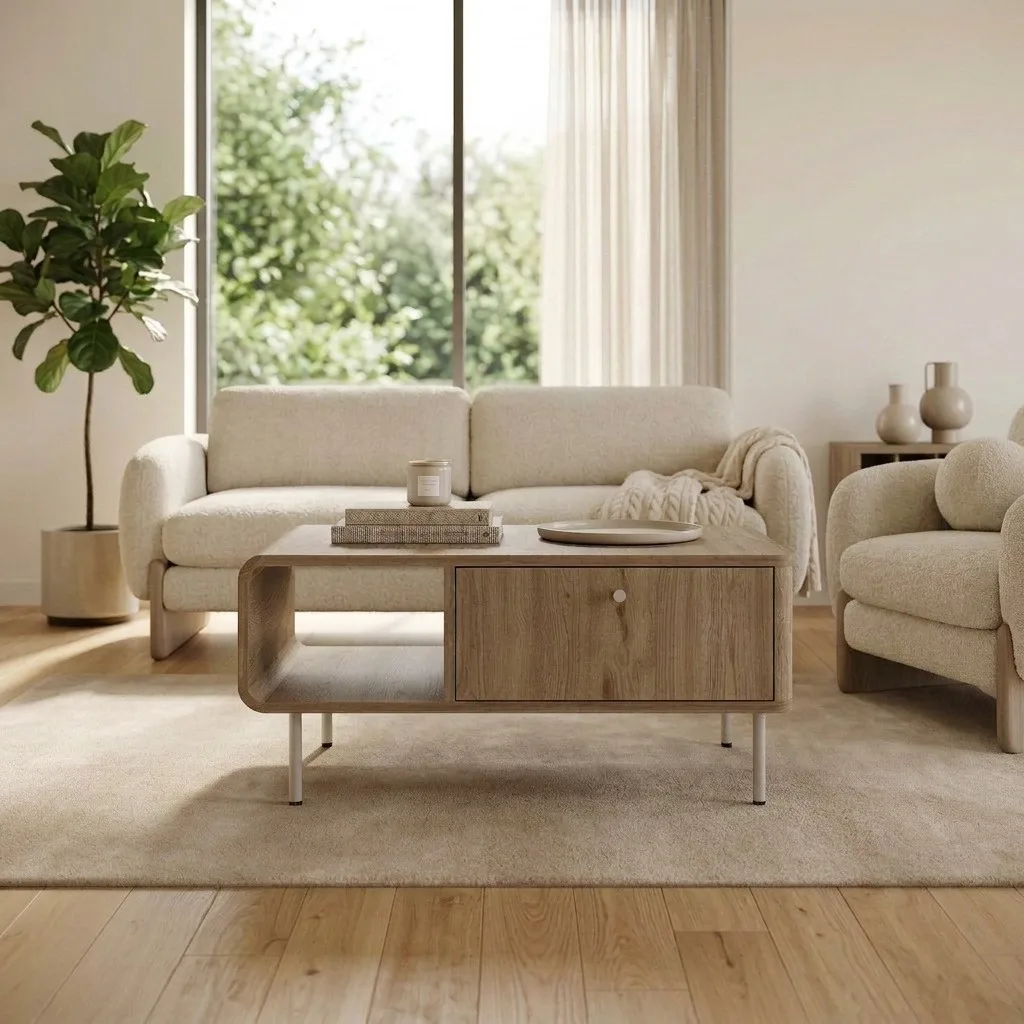
| Anchored (Classic) | The sofa's front legs rest on the rug and the coffee table stands on it. Most of the surface stays visible. | You want the standard living-room look. This is the default. |
| Fully Under Furniture | The whole seating group stands on the rug, which extends beyond the furniture on all sides. | The rug is large (roughly 200 × 300 cm and up) and you want to show that it fits a full seating area. |
| Open Floor | Nothing stands on the rug. The furniture sits around its edges. | The pattern is the selling point: medallions, borders, detailed motifs that a coffee table would cover. |
For a listing gallery, one Open Floor image to show the full pattern plus one Anchored image to show it in use covers what most buyers look for.
Step by step
- Upload the flat photo in Single Product staging and confirm the product type as Carpet / Rug.
- Enter width and length in centimetres.
- Choose the furniture placement: Anchored, Fully Under Furniture or Open Floor.
- Pick a room style. Rugs are placed in a living-room setting by default. With Multirooms you can generate up to four differently styled rooms from the same photo in one run, which is the quickest way to see whether a rug reads better in a light Scandinavian room or a darker, warmer one. More on choosing scenes in how to create lifestyle photos for furniture.
- Check the result against the source photo (see the next section) and download. Output is 2K at 300 DPI; a 4K version is available through AI upscale.
If you already work in ChatGPT, the OmniRoom app in the ChatGPT directory does the same staging from an attached photo and returns watermarked previews, which is enough to judge fidelity before you open an account.
What to check before you publish
Colour and size are the two things a buyer cannot judge from a flat product photo, and the two a room scene can get wrong. Verify both in every generated image, along with the pattern.
- Pattern. Put the source photo and the result side by side. Count a repeating element along one edge, for example border motifs. The count and their order should match.
- Colour. Room lighting shifts how colours look, the same way it does in a real photograph. Compare the lit, unshadowed part of the rug with your source. If the room is too warm or too dim for an accurate read, regenerate in a brighter style instead of publishing it.
- Scale. Look at the rug against the sofa. A three-seat sofa is a little over two metres wide, so a 160 × 230 cm rug should be about as long as the sofa and a 200 × 300 cm rug clearly longer.
- Edges and fringe. Fringes, tassels and bound edges should appear where they are in your photo, and nowhere else.
- Pile. A flat-weave should not come out looking like a shag, and the reverse.
Keep at least one plain, flat product photo in the gallery next to the room scenes. Amazon requires it as the main image, and on every channel it is the reference buyers use for the pattern.
Where the images go
- Amazon: the main image must be the product alone on a pure white background; room scenes belong in the secondary slots. See the Amazon furniture photography guide.
- Wayfair: lifestyle images are expected alongside the silo shot. See the Wayfair image guidelines.
- Etsy, eBay and your own store: a room scene can lead the gallery. The free marketplace image checker tests a file against each channel's size and background rules in the browser.
Frequently asked questions
Can AI put my rug in a room from a single photo? Yes. One top-down photo with all four edges visible is enough. The rug is cut out, laid flat on the floor of a generated room, and furniture is arranged around or on it according to the layout you choose.
Will the pattern and colours stay the same? OmniRoom is built to keep the product unchanged, and for a flat item like a rug the pattern normally transfers intact. Check every image against the source before publishing, as described above; that check takes under a minute.
Does it work for runners and round rugs? Enter the real dimensions so the scale is right. Runners and round rugs are staged the same way; if the shape or placement comes out wrong, regenerate with the Open Floor layout, which leaves the rug uncovered.
How much does it cost? Each generated 2K image is 4 credits. New accounts start with 32 free credits. Plans start at $9.99 per month for 120 credits; details are on the pricing section.
Can shoppers see the rug in their own room? Not with OmniRoom. That is a shopper-side visualizer, a separate kind of tool that runs as a widget on your own site.
Related reading: AI product photos for bedding and textiles · The best AI furniture staging tools in 2026 · Dimension images that reduce returns